1Introduction
This chapter tells you what Stratum 4D does, which layouts it has, and how to use this manual.
What Stratum 4D is
Stratum 4D is a planning and 4D simulation tool for construction projects. It reads a schedule from Primavera P6 or Microsoft Project. It can also read a 3D building model in the IFC format.
You link the model elements to the activities of the schedule. Stratum then shows the construction sequence in 3D, day by day. You can calculate the schedule, record progress, compare against a baseline and make reports.
The three layouts
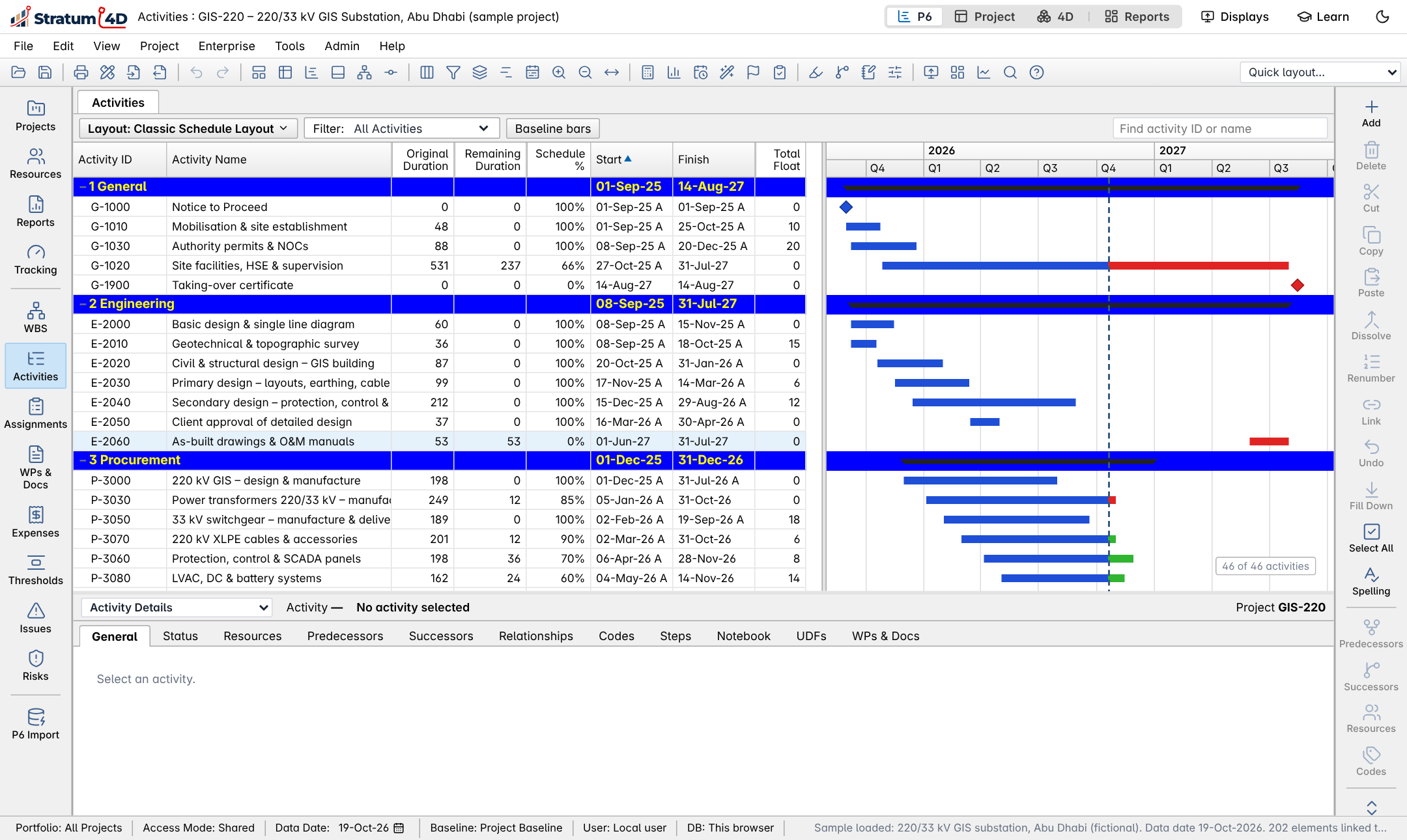
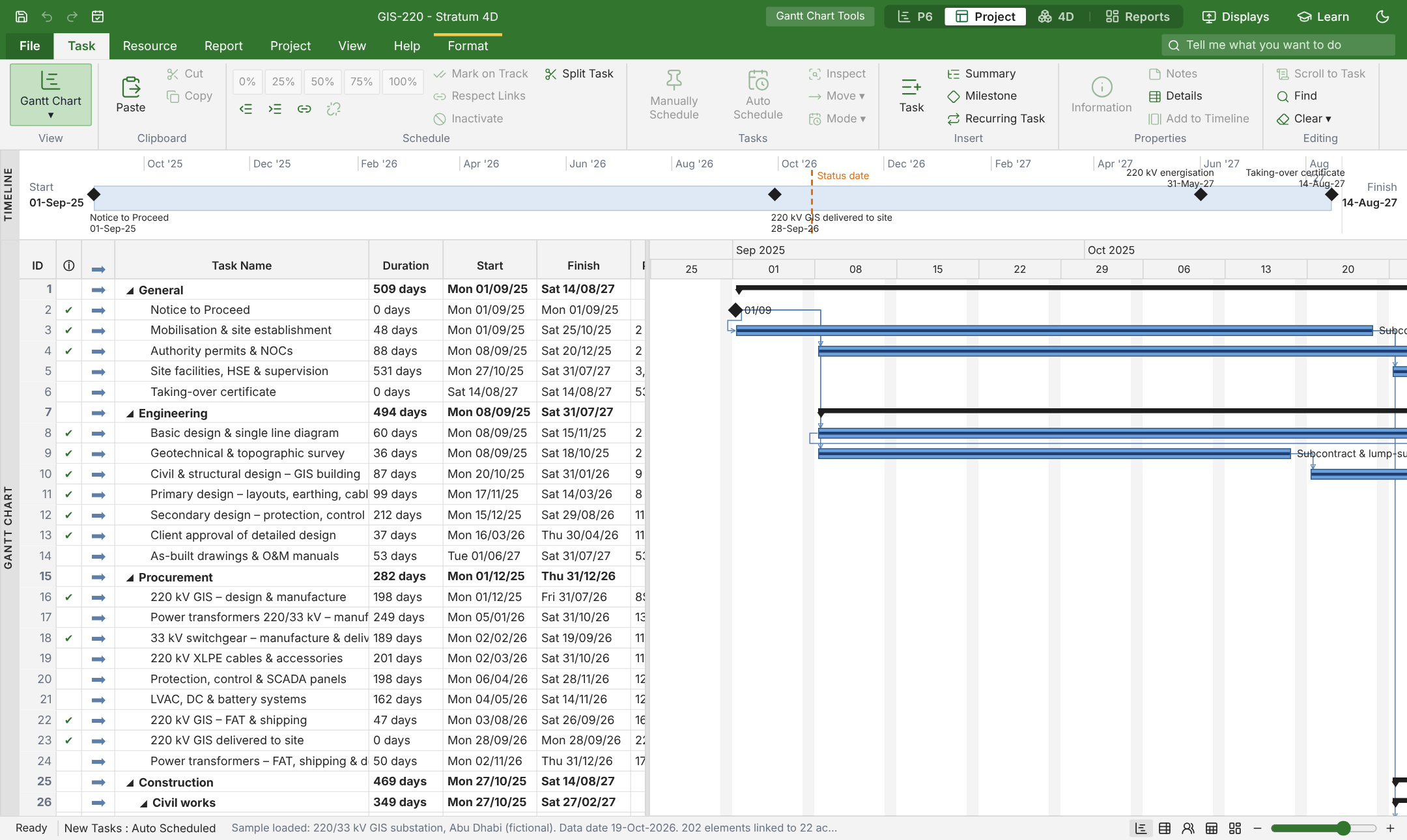
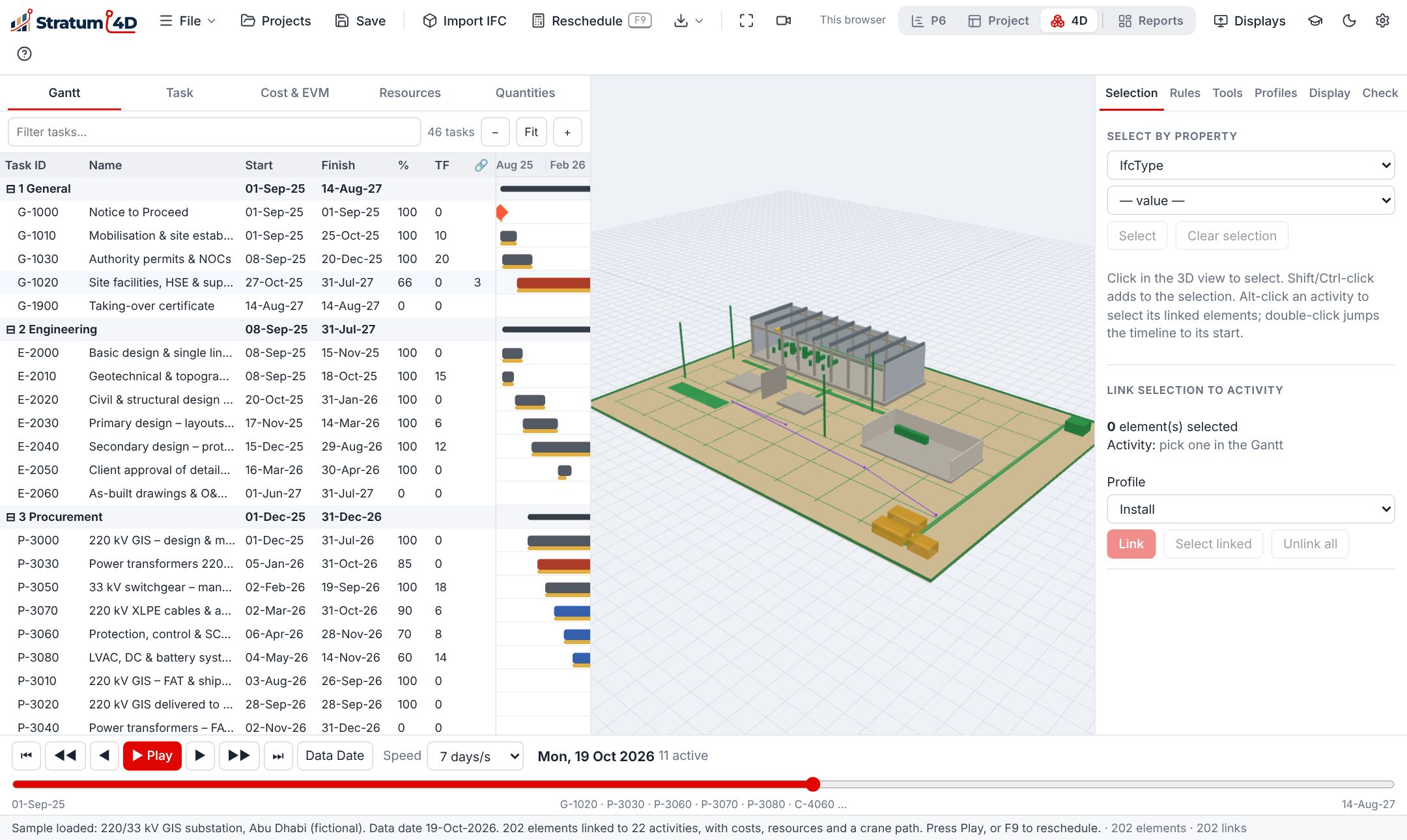
Stratum 4D has three layouts. All three layouts use the same calculation engine and the same project data. When you change the layout, the open project stays open.
- The P6 layout looks and works like Primavera P6 Professional.
- The Project layout looks and works like Microsoft Project.
- The 4D layout shows the 3D model, the Gantt chart and the playback timeline together.
To change the layout
- On the top bar, click P6, Project or 4D.The new layout opens with the same project.
- Alternatively, push Ctrl+Alt+1, 2 or 3.
The sample projects
Stratum 4D has two sample projects. You can use them to learn the software without your own files. The two sample projects are fictional.
| Sample project | Contents |
|---|---|
| 220 kV GIS substation (UAE) | 46 activities on a UAE 6-day calendar, costs in AED, resources, a baseline and a 3D model with 202 elements. |
| Small RC building | A small concrete building with 14 activities and a 3D model. Use it for a fast first test. |
This manual uses the 220 kV GIS substation project for most examples.
How to use this manual
This manual is written in ASD-STE100 Simplified Technical English. Each chapter starts with its purpose. Then it gives a description and the procedures.
- A procedure is a numbered list of steps. Do the steps in the given order.
- A line that starts with "Result" tells you what you see after the step.
- Names of buttons, menus and fields are in bold blue.
- Keys are shown as Ctrl+S. Push the keys at the same time.
The words in the layouts
Each layout uses the words of the software that it copies. The table gives the words for the same item in each layout.
| Item | P6 layout | Project layout | 4D layout |
|---|---|---|---|
| One item of work | Activity | Task | Task |
| Its identifier | Activity ID | ID (row number) | Task ID |
| Date of the last progress update | Data date | Status date | Data date |
| Calculate the dates | Schedule (F9) | Calculate Project (F9) | Reschedule (F9) |
| Time that work can slip | Total float | Total slack | TF |
| Group of work | WBS | Summary task | WBS |