4Projects and files
This chapter tells you how to open, import, save and export projects, and where Stratum 4D keeps them.
Projects and files
In this manual, a project is a schedule that Stratum 4D keeps in its database. A file is a file on the disk, for example an XER file from P6.
You import a file to make a project. You export a project to make a file. The project database keeps each saved version of a project.
Where Stratum 4D keeps the projects
| Storage | Where | Who can open the projects |
|---|---|---|
| Desktop application | A SQLite file in your user folder | You, on this computer |
| Web application | The storage of the browser | You, in this browser on this computer |
| Cloud folder | A Google Drive or OneDrive folder | All persons with edit access to the folder |
| Stratum Server | A PostgreSQL database | All users of the server, by their role |
Each save gets a version number. If a different person saved the project after you opened it, Stratum 4D does not save over that version. It gives you the option Save as new.
Import a schedule file
Stratum 4D can import these schedule files:
- Primavera P6 XER files (
.xer), with activities, WBS, logic, codes, user fields, calendars, resources, costs and baselines. - Microsoft Project XML files (
.xml). In Microsoft Project, use File › Save As › XML Format to make this file. - Microsoft Excel files (
.xlsx) that you exported from Stratum 4D and changed.
.mpp files. Save the file as XML in Microsoft Project first.To import a schedule in the P6 layout
- Click File › Import….
- Select the
.xeror.xmlfile. - Click Open.The schedule opens as a new project.
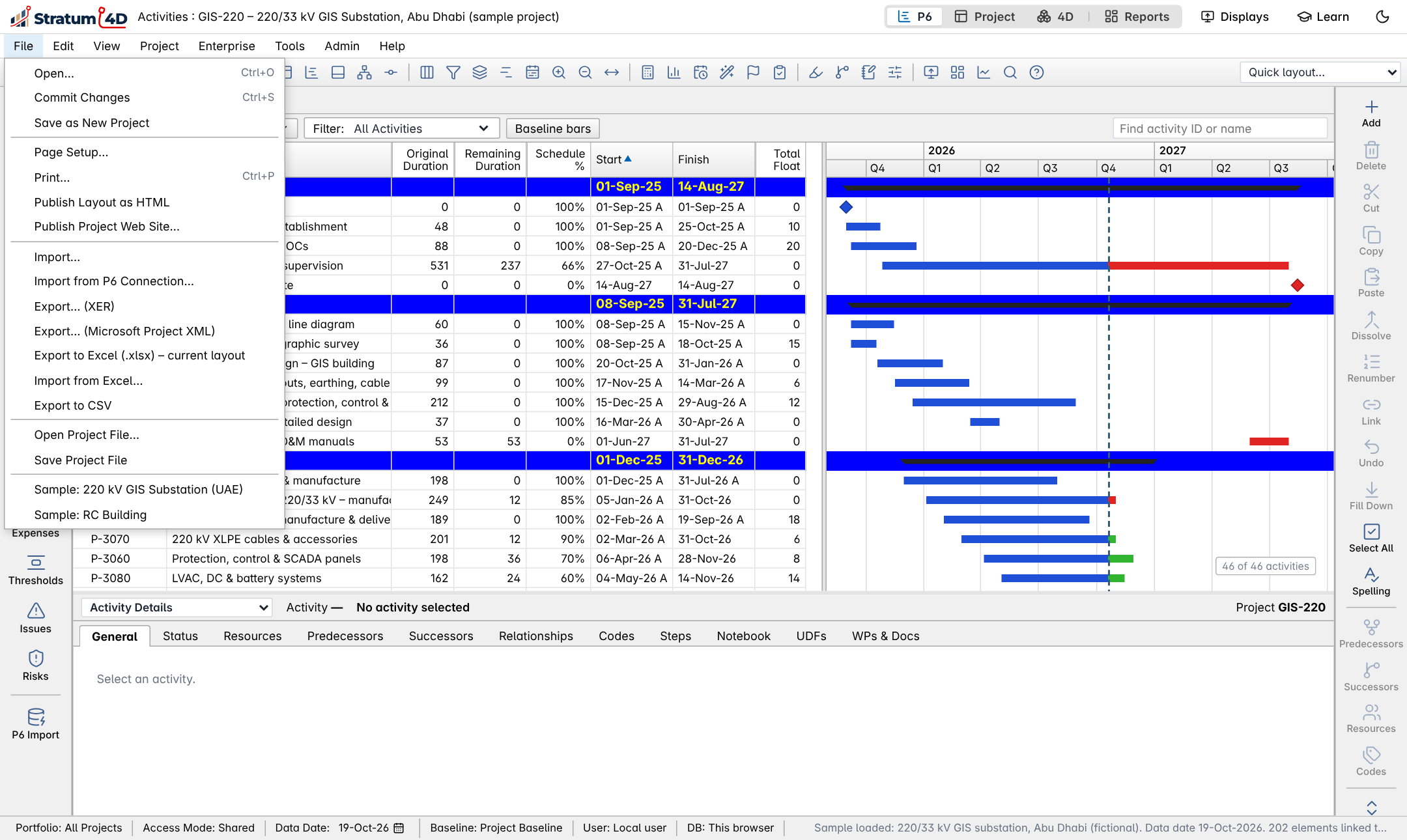
To import a schedule in the Project layout
- Click File.
- Click Open.
- Click Import XER / Microsoft Project XML.
- Select the file and click Open.
To import a new version of the same schedule
Each week, you can import the new XER over the open project. Stratum 4D keeps the model links because it finds each activity by its Activity ID. If you click Cancel at step 3, the file opens as a new project.
- Open the project.
- Import the new XER file as usual.
- Stratum 4D asks "Update the open schedule with this file?". Click OK.The Check tab lists the changes: finish slip, new and deleted activities, and changes of status.
Open and save a project
To open a project from the database
- Click Projects (P6 and 4D layouts), or File › Open › Projects (Project layout).
- Select the project.
- Click Open.
To save a project
- Push Ctrl+S, or click Save.Stratum 4D saves a new version of the project in the database.
Stratum 4D also saves your work in the background every few seconds. If the application closes without a save, it asks you to restore the work at the next start.
Export a project
| Export | Use it for |
|---|---|
| P6 XER | Import into Primavera P6. Use Update Existing Project in P6 to bring the dates back. |
| Microsoft Project XML | Open in Microsoft Project 2010 or later. |
| Excel (.xlsx) or CSV | Change data in Excel, or make your own reports. |
| Stratum project file (.stratum.json) | Move a project, with its model links, to a different computer. |
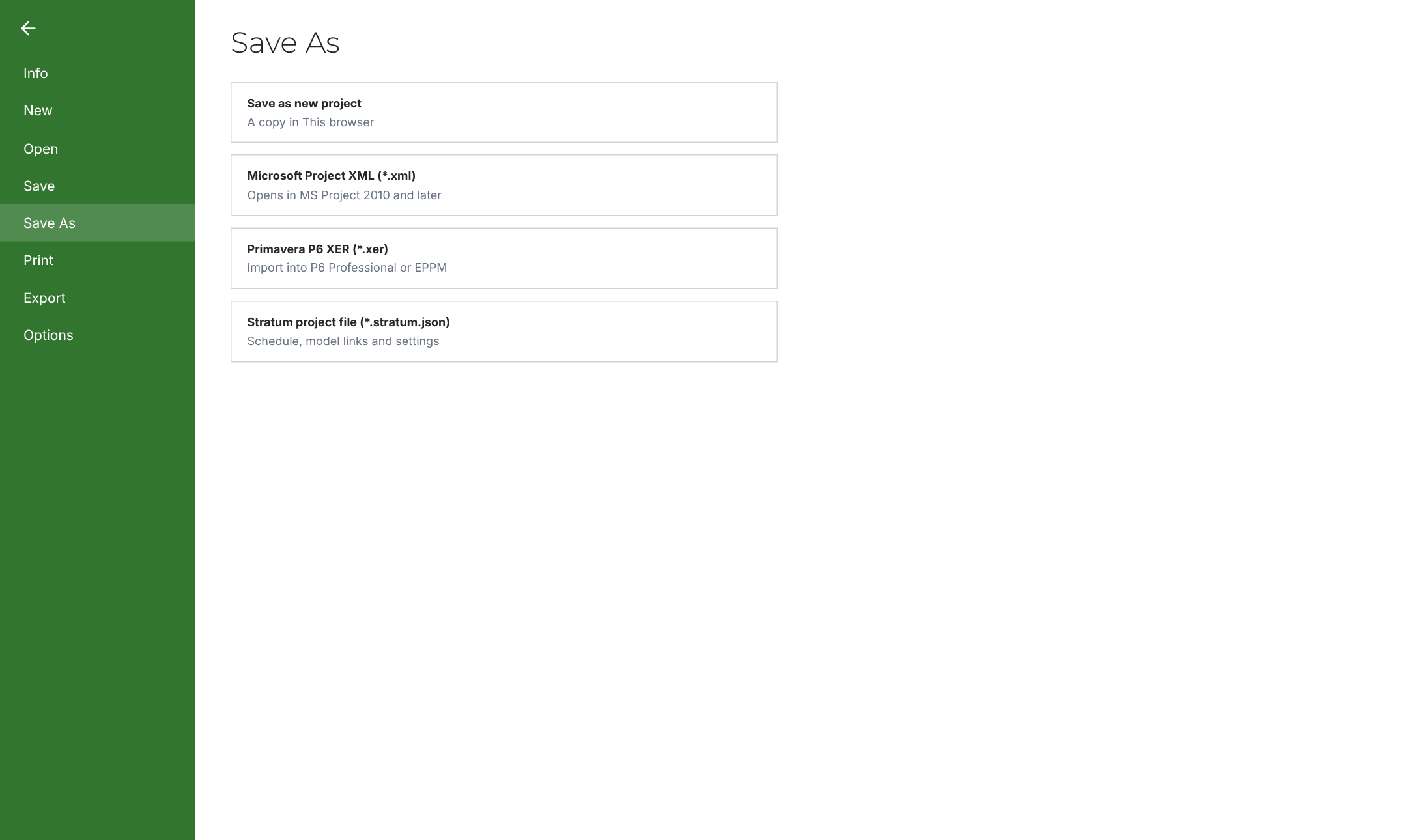
To export a project
- In the P6 layout, click File › Export…. In the Project layout, click File › Save As.
- Click the type of file.The file goes into the Downloads folder.
Share projects with a cloud folder
A team can use one Google Drive or OneDrive folder as a shared database. All persons with edit access to the folder work on the same projects. Stratum 4D does a check before each save, so no person saves over newer work.
- Click the gear icon (Settings).
- Click the Data & sign-in tab.
- Under Cloud folder, click Google Drive or OneDrive.
- Sign in to the account.A list of your folders opens.
- Open the folder that your team shares.
- Click Use "<folder>" as the Stratum folder.The projects in the folder show in Projects.
docs/CLOUD_STORAGE.md tells the administrator how to do this.